
Add | Edit | Delete | Move & Copy
The device tree is located on the left side of the Alldevice user interface. In general, its logic is similar to a typical desktop file structure, where folders are arranged on a drive, containing subfolders and files. We refer to these folders as locations, and they can contain devices as well as sub‑locations.
By default, the device tree includes a location named after your company (the root location). The root location name comes from the company settings, and it cannot be changed through the device tree. Read more about this HERE.
Editing a location and the number of options available in the location’s context menu depend on the activated functionalities and the permissions granted to the user.
The [ + ] symbol in front of a location indicates that this location contains devices or sub‑locations. To open the location, click the [ + ] symbol or double‑click the location name. You can also open the location’s context menu and select “Open all”, which expands all sub‑locations within that location.
NB! The “Open all” option is not available for the root location.
To close a location, click the [ – ] symbol in front of its name or double‑click the location name. You can also open the context menu and select “Close all”.
Adding a location
To add locations, the user must have the “Can add and edit locations” privilege.
To create a new location, right‑click the desired parent location and select “Add new location” from the context menu. In the window that opens, enter the desired name and click “Save”. Done!
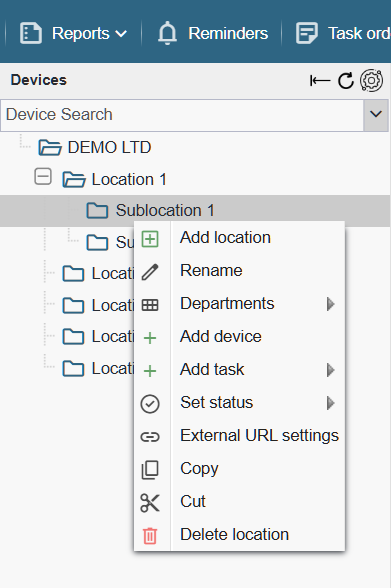
NB! The new location is created inside the location from which you opened the context menu. If you clicked the root location, the new location will be created on the first level. If you clicked an existing location, the new location will be created inside it. You can create as many sub‑locations as needed — there is no depth limit.
Editing a location
To edit locations, the user must have the “Can add and edit locations” privilege.
To rename a location, open the context menu of the desired location (right‑click) and select “Rename”. You can also simply click the location to activate it and press the F2 key on your keyboard.
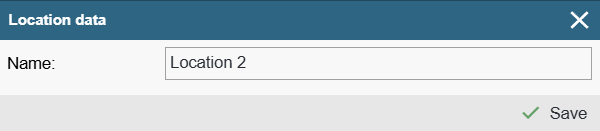
In the window that opens, make the desired changes and click “Save.”
To cancel the action, press the Esc key on your keyboard or simply close the window using the X button.
Deleting a location
To delete locations, the user must have the “Can delete locations” privilege.
To delete a location, right‑click the desired location and select “Delete” from the context menu.
NB! A location cannot be deleted if it contains devices — either directly or within any of its sub‑locations. You must first remove all devices from that location (either delete them or move them elsewhere). Only then can you delete the desired location, including all of its sub‑locations.
Moving or copying a location
To copy or move locations, the user must have the “Can add and edit locations” privilege.
If you have built a more complex structure of sub‑locations and want to move it to a new place or reuse the same structure elsewhere, there is no need to recreate everything manually. You can simply move or copy the entire branch at once.
To copy a location, open the context menu of the desired location and select “Copy”. Then right‑click the target location, open its context menu, and select “Paste.”
When a new location is created through copying, the suffix “ – Copy” is added to its name. If the new location appears next to the original one, this makes it easy to distinguish between them. To remove the “ – Copy” suffix, simply rename the location. The renaming process is described above.
There are two ways to move a location to a new place:
- From the location’s context menu, select “Cut”, and then from the target location’s context menu, select “Paste”.
- Click and hold the desired location with your mouse, then drag it to the new position.
NB! If the location contains devices, those devices will be copied as well.
A corresponding log entry is created in the system for all operations performed in the device tree that modify data (adding, editing, deleting, copying, moving).