
Users (general) | Data | Companies | Departments | Log
In the Alldevice application, you can create, edit, or delete users through the menu ‘Settings > Users > Users’.
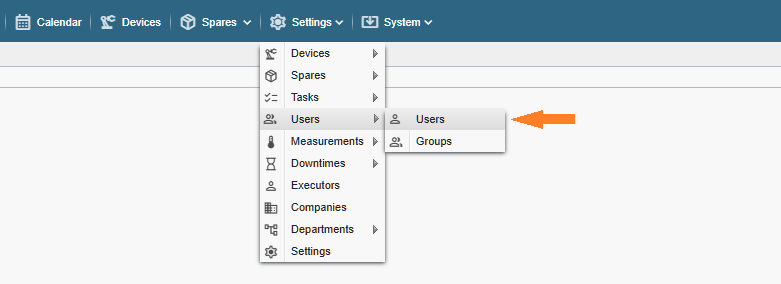
Note! If you do not see the referenced menu links in the Alldevice CMMS application, you lack the necessary permission (privilege) to manage users.
The opened view displays all users entered into the Alldevice CMMS application.
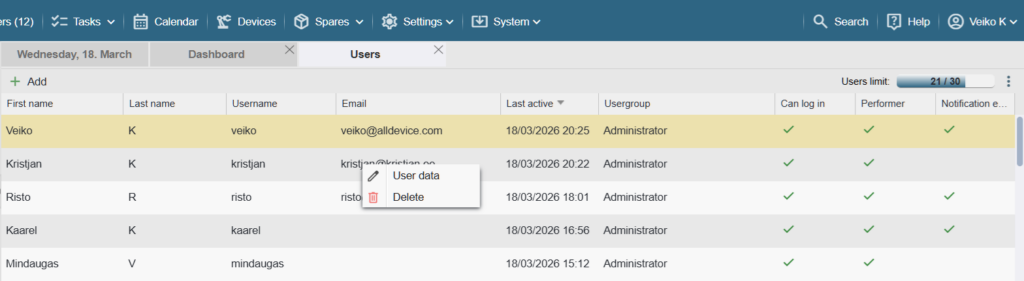
In the upper right corner of the table, the number of active users included in your package is displayed, along with how many of them have already been activated (used).
On the right side of the table, three columns are displayed that indicate the status of the given user.
- Can log in: The user has the right to access the application.
- Performer: Indicates whether the user can be assigned/selected as a performer for a work order.
- Email notifications: Indicates whether the Alldevice application is allowed to send notifications to the user by email.
To modify user data, double‑click the desired row or right‑click it and select User data from the context menu.
To delete a user, right‑click the desired row and select Delete from the context menu.
Note! It is not possible to delete your own user account.
Note! Deleted users remain visible in completed tasks (the history is preserved).
To add new users, click the ‘+ Add‘ button.
In the opened window, complete the required fields (See also: Data, Companies, Departments).
Additional options
In the upper‑right corner of the table, there is an additional options menu (the three‑dot button). Clicking it opens the available actions.
- Export: Allows exporting the user list in Excel format.
- Help: Opens the correct place in the user manual (this article).
Note! There are no restrictions on adding users. However, the number of users who can be granted access to the application depends on the package (license) you have purchased.
To increase the number of active users, contact your Alldevice representative or send us an email at sales@alldevice.com.