
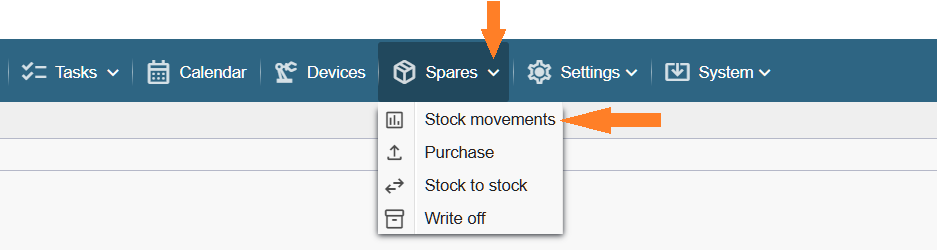
The Stock Movements table can be opened by clicking the small arrow next to the “Spare parts” button in the top bar, which opens the button’s context menu. The table displays all stock movement documents (purchases, stock to stock movements or write‑offs for adjusting spare parts stock outside of work orders)
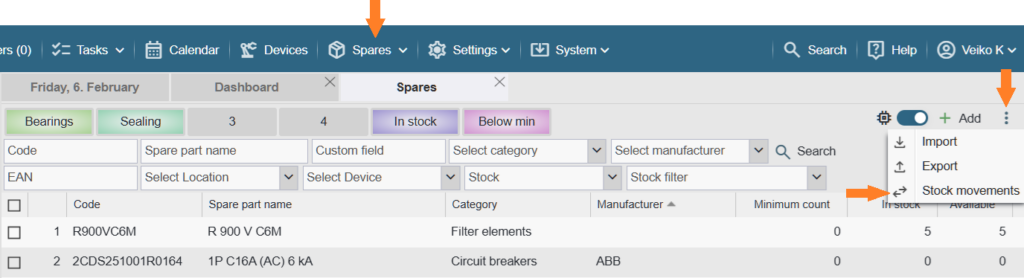
Another way to open the Stock Movements table is to click the “Spare parts” button and then, in the header of the table that opens, click the “Stock movements” button on the right.
To view the Stock Movements table, two conditions must be met:
- The Spare parts functionality must be enabled (Settings > Settings > Functionality).
- The user must have permission to view the Spare parts table (Settings > Users > Groups > [ Spare parts ] > “Spare parts table visible”).
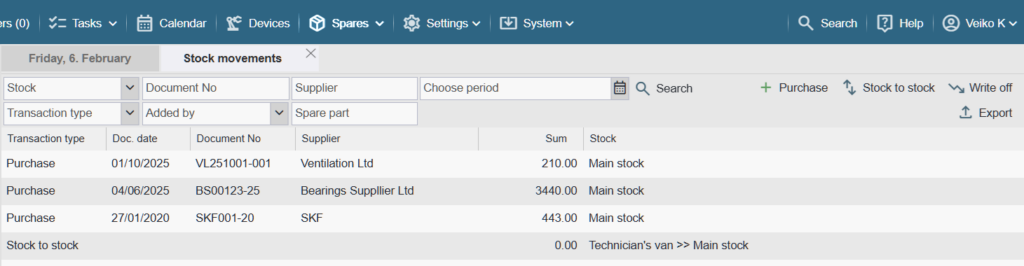
The Stock Movements table allows you to change the order and visibility of columns if needed. You can read how to do this HERE.
The table can display the following columns:
- ID – Stock movement entry ID in the database
- Date – The date when the stock movement was performed (entry date)
- Added by – Name of the user who created the entry
- Entry type – Type of the stock movement entry (Purchase, Stock to Stock, Write‑off)
- Doc. date – Purchase invoice date (relevant only for purchase documents).
- Document no. – Purchase invoice number (relevant only for purchase documents).
- Supplier – The supplier of the goods (relevant only for purchase documents).
- Sum – Total value of the products included in the document
- Stock – Names of the warehouses involved in the transaction
Buttons in the upper‑right corner of the table

- Purchase – Opens a window for entering a goods receipt document
- Stock to stock – Opens a window for entering a stock transfer entry for moving spare parts from one warehouse to another
- Write‑off – Opens a window for entering a write‑off entry for spare parts
- Export – Allows you to export the visible (filtered) stock movement rows to an Excel file.
NB! Stock movements cannot be deleted. If an incorrect entry was made, you must create a new reversing entry that offsets the previous one.