
To get an overview of department usage and assign departments to locations, select “Settings > Departments > Department Overview” from the top menu bar.
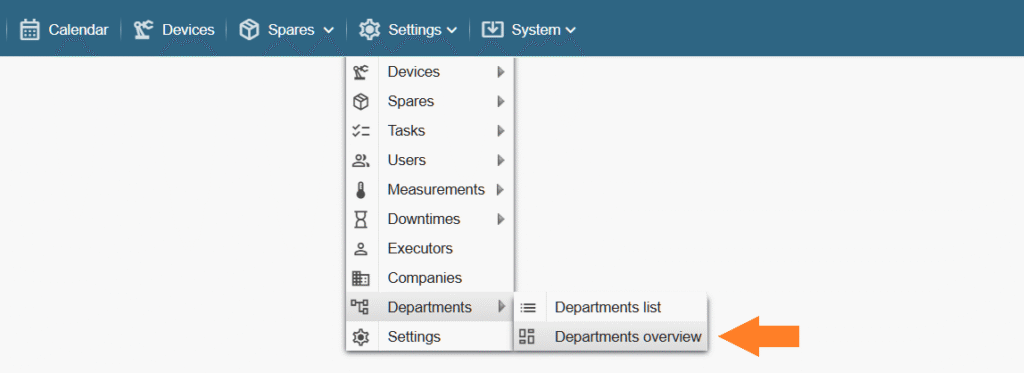
Note: If you do not see the referenced menu links in the Alldevice CMMS application, it means you either lack the necessary permission (privilege) to manage departments or the department functionality has not been activated.
In the window that opens, you will see all locations listed in the left column and the departments associated with them on the right. If a cell is empty, it means no department is linked to that location.
To assign a department, click on the desired row in the right-hand column and select the appropriate departments from the dropdown list that appears.
To remove a department, click on the active department name in the dropdown list or use the “X” (clear) button located on the right side of the field.
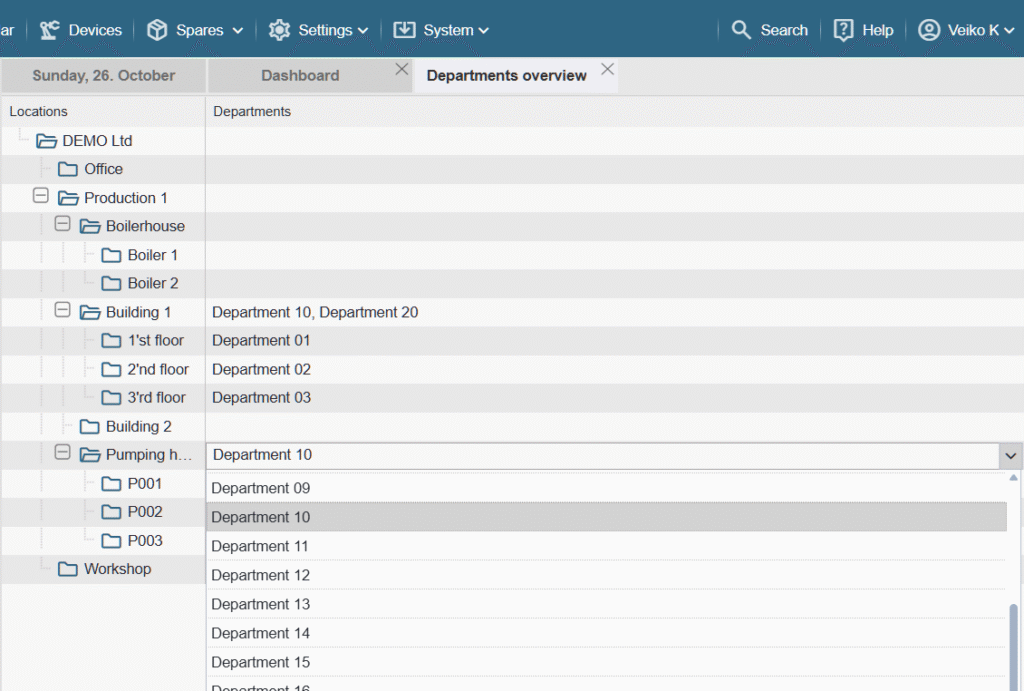
Note: The effect of the assigned department will automatically apply to all sublocations within the selected location.
There is also an alternative way to manage departments. To do this, right-click on the desired location in the device tree on the left side of the application, and select “Departments” from the context menu that appears.
To learn how to use department functionality, click HERE