
In Alldevice, every user is assigned to a privilege group, which determines their access rights within the application.
In Alldevice, you can create, edit, or delete user groups via Settings > Users > Groups.
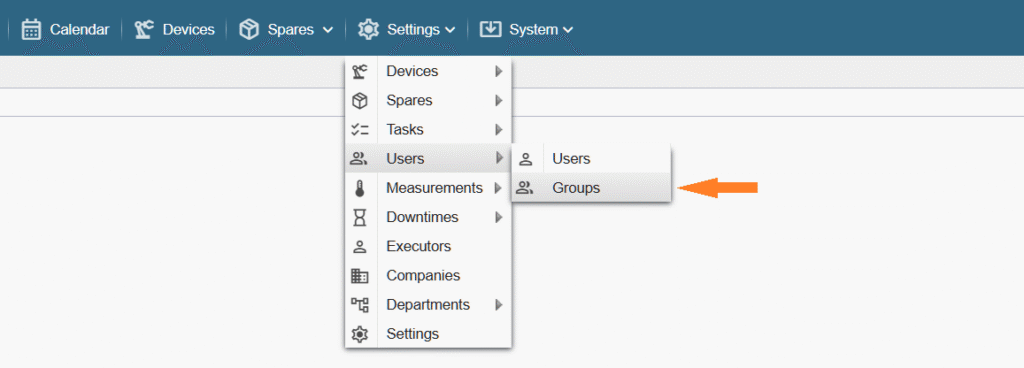
Note! If the referenced menu links are not visible in the Alldevice CMMS application, you do not have the required privilege to manage privilege groups.
The opened view displays all user privilege groups registered in the Alldevice CMMS application.
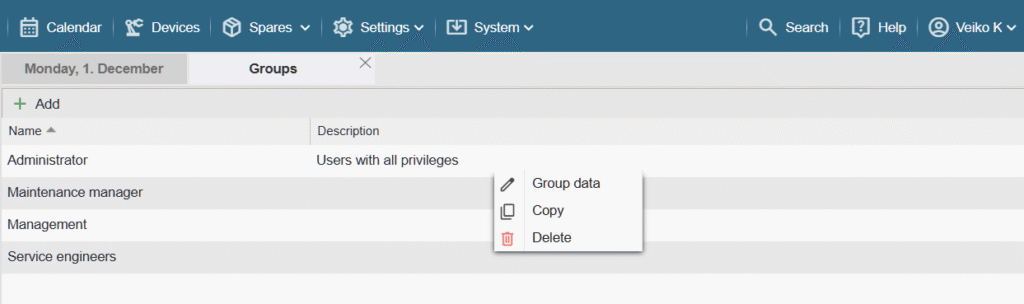
To edit a user group, double‑click the desired row or use the context menu option User group data.
To duplicate an existing user group, choose Copy. This provides a convenient way to create a new group derived from an existing one.
To remove a group, right‑click the desired row and choose Delete from the context menu.
Note! Groups currently in use cannot be deleted.
To create a new group, press ‘+ Add‘ and complete the necessary fields in the pop‑up window.
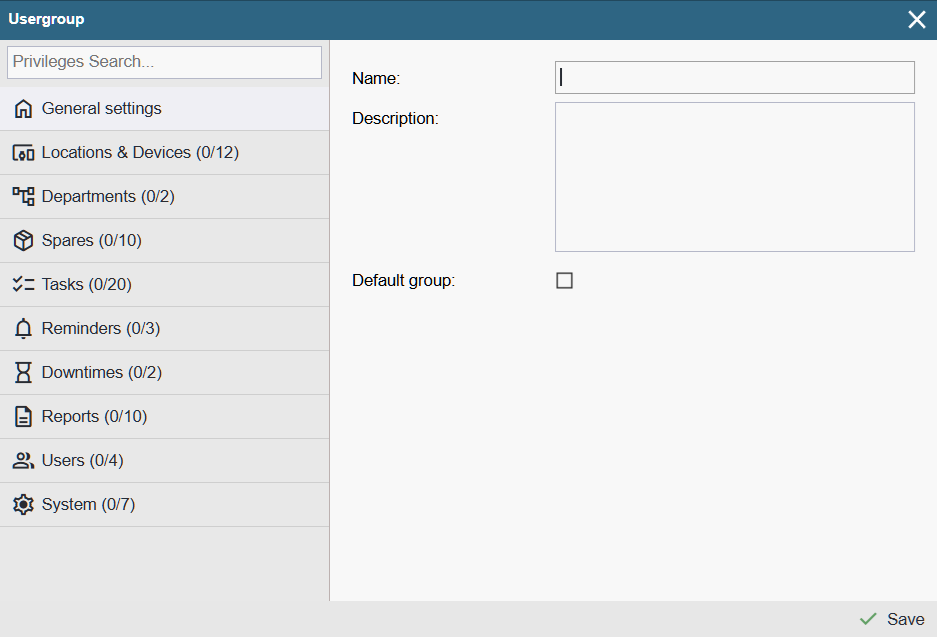
In the upper left corner, the Search window allows you to quickly find the desired permission without scrolling through all the pages.
To configure user rights (privileges), go through all the desired pages and mark the required privileges.
After the TAB title, the number of active rights and the total number of rights in this subsection are shown in parentheses.