
To use spare parts, open the desired task (work order) and navigate to the “Used Spares” page.
Select all spare parts used to perform the task from the list on the page, specify the quantities, and choose the stock from which each part was taken.
To change the quantity or stock, first activate the desired row. Then click the appropriate cell in that row and enter your selection.
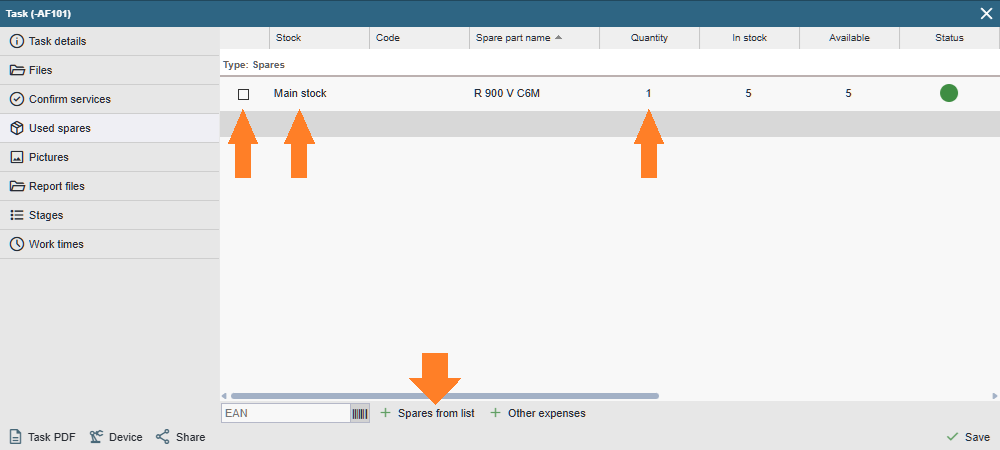
If the desired spare part is not already listed on the page or if the list is empty, you can add spare parts by clicking the “+ Add from list” button. Alternatively, enter the part’s EAN code in the adjacent field or scan the barcode on the packaging using a barcode reader. (You can read more about EAN codes HERE.)
After clicking the “Save” button, the selected spare parts will be boked for the task.
The following changes will take place in the Alldevice Spare Parts list:
After saving:
- The quantity in the “Booked” column increases by the corresponding amount.
- The number in the “Available” column decreases by the corresponding quantity.
- The quantity in the “In Stock” column does not change.
After confirming the task:
- The quantity in the “Booked” column decreases by the corresponding amount.
- The quantity in the “Available” column does not change.
- The quantity in the “In Stock” column decreases by the corresponding amount.