
Companies is a feature that allows clients with a multi-license to enter data from different production units or subsidiaries into a single Alldevice environment
Note: The multi-license option has now expired and is no longer available to new clients.
Changing the company name, logo, general information (used in the document footer), and the info text for the external work order submission page (link) is done through the company information settings.
To manage company general information, select “Settings > Companies” from the top menu bar.
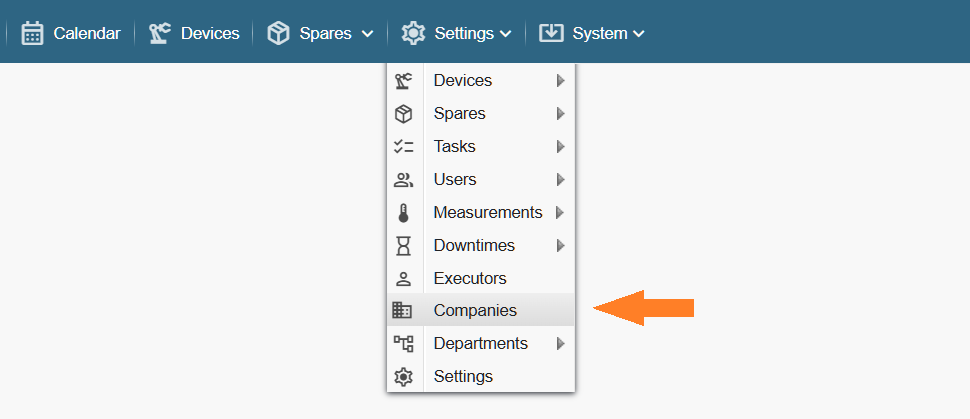
Note: If you do not see the referenced menu link in the Alldevice CMMS application, you do not have the necessary permission (privilege) to manage company data.
In the window that opens, you will see a list of all companies created in the Alldevice environment that you have access to.
To create a new company, click the “+ Add” button. If the button is inactive, it means you have reached the maximum number of companies allowed by your license.
To edit a company’s general information, double-click on the desired company name or right-click it and select “Edit” from the context menu.
In the window that opens, modify the desired fields.
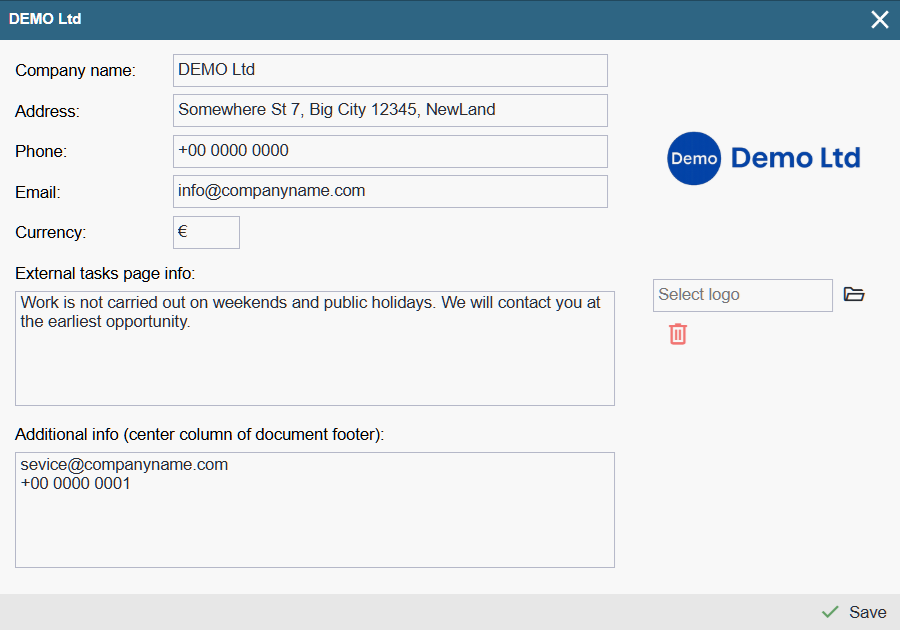
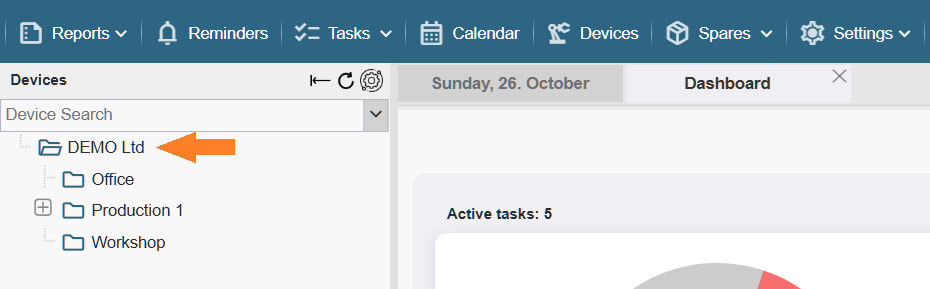
Company Name: The company name is displayed on the left side of the work order footer, on the external work order submission page, and in the header of the device tree located on the left side of the application.
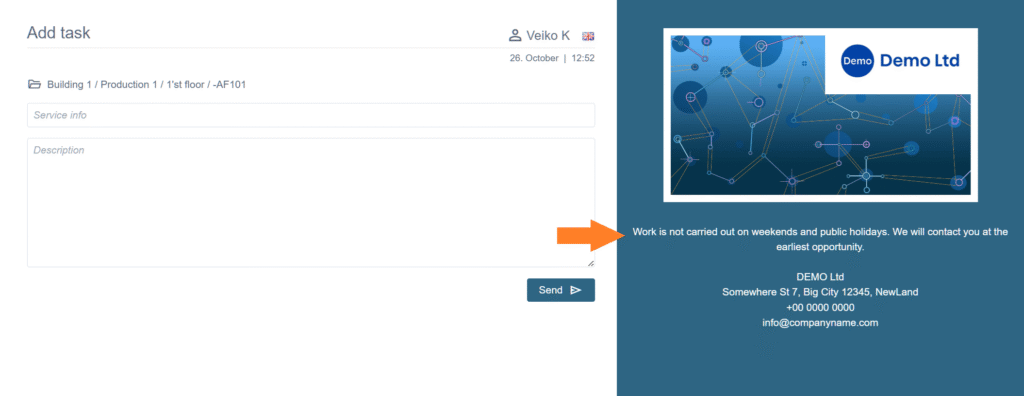
Address: The address is displayed on the left side of PDF document footers and on the external work order submission page.

Phone: The phone number is displayed in the footer of PDF documents and on the external work order submission page.
Email: The email address is displayed in the footer of PDF documents and on the external work order submission page. No emails are sent to this address by the application.

Currency: The monetary unit displayed on the work order and in the cost table of spare parts and additional expenses in the completed work report.
Additional Information on the External Work Order Submission Page: This is the informational text displayed on the right-hand side of the external work order submission page.
Additional Information (center of document footer): This is the text that appears in the center section of the footer on PDF documents.

Logo: The selected logo is displayed in the top right corner of PDF reports. By default, if no custom logo has been uploaded to the application, the Alldevice logo will be shown. If the logo is deleted, it will also be replaced with the Alldevice logo.
Note: This logo is not used on the login page. To learn how to change the login page logo, click HERE.
To delete a company, right-click on the desired row and select “Delete” from the context menu.
Note: It is not possible to delete the company you are currently logged into.