
If there arises a situation where stock levels need to be reduced outside of a work order, this can be done by writing off spare parts.
To perform a write-off, click the “Spare Parts” button on the top toolbar, then click the “Stock Movement” button located at the top right of the opened table header…

… and from there, select “Write-off”

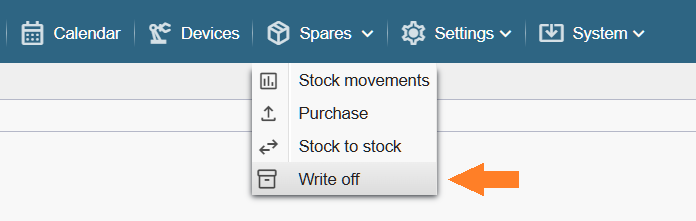
As a quicker shortcut, you can also click the downward arrow icon on the right side of the “Spares” button in the toolbar, and select “Write-off” from the context menu that appears.
In the opened window, first fill in the comment field. Although it’s not mandatory, it is advisable to leave a comment explaining why the following spare parts are being written off
Select the stock from which you want to write off spare parts, and then add the products.
To add products, you can use a barcode scanner. Make sure the cursor is blinking in the EAN field. Scan the barcode, and the product will be added to the list. Each additional scan of the same product increases the quantity by one. If you wish to write off the same product from another warehouse, change the stock name and scan the barcode again.
Another option is to use the spare part code or name search. Enter a fragment of the name, and matching results will be suggested. Select the correct one from the list and click on it.
NB! Keep in mind that the search will only find products available in the selected stock. Only products with a positive quantity can be written off, and only up to the specified amount.
A third option is to use the “Find Product” button and locate the correct item from the window that opens.

If the list of products to be written off is longer, you can use XLS table import to enter the items. First, export the spare parts table and remove all quantities from the “In Stock_PIS” column. Then, enter the desired write-off quantity as a negative value in the appropriate rows.
Keep in mind that rows in the table with a quantity of zero or a positive value will be ignored and not included in the import.
If you want to write off the same spare part from different stocks, you must create a separate table for each stock and change the stock name before importing the next table.
NB! If the write-off quantity in the file is -10 but the selected stock only has 3 units available, the quantity will be adjusted to 3.
If you need to perform both a write-off and stock intake simultaneously, you can use the same table for both operations. Products to be written off should be marked with a negative quantity, and newly purchased items with a positive quantity.
You can read more about increasing stock levels HERE.
Note: Before performing the write-off, carefully verify that all data is correct. Once the document has been submitted, it cannot be reversed or deleted.
Once all desired products have been added to the list, click the “Complete Write-Off” button located at the top right corner.