
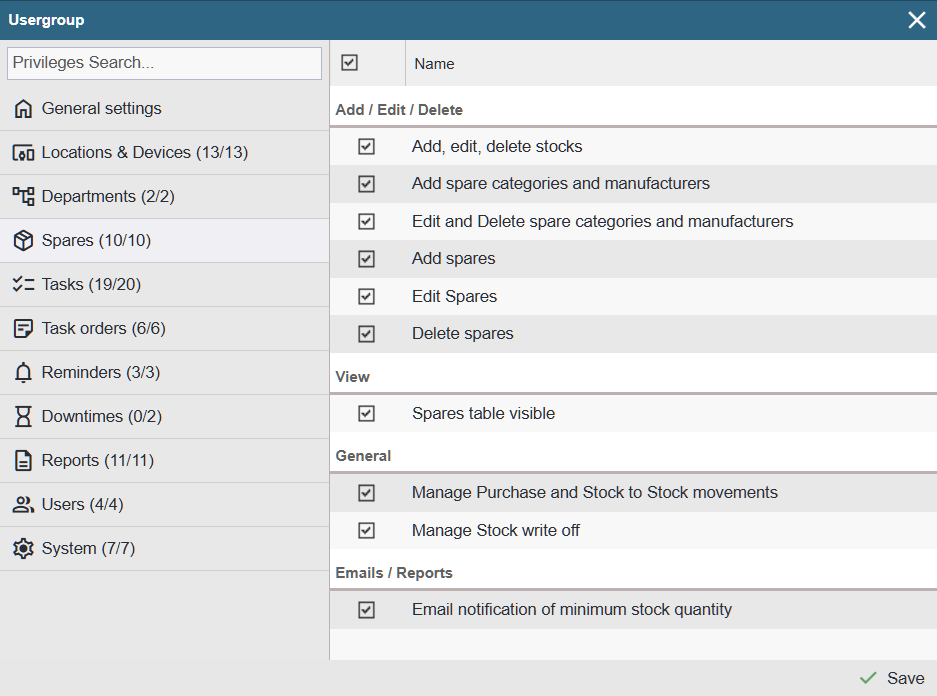
Add / Edit / Delete
Add, edit, delet stocks – Provides access to the menu Settings > Spares > Stocks and allows managing the list of warehouses (add, edit, delete).
Add spare categories and manufacturers – Provides access to the menus Settings > Spares > Categories and Settings > Spare Parts > Manufacturers, allowing new categories and manufacturers to be added. In addition, when adding or editing a spare part card, an ‘Add new…’ option appears at the end of the category and manufacturer dropdown lists, enabling new entries to be created without leaving the card.
Edit and delete spare categories and manufacturers – Provides access to the menus Settings > Spares > Categories and Settings > Spare Parts > Manufacturers, allowing categories and manufacturers to be edited and deleted.
Adding spares – Allows new spare part cards to be created. A ‘+ Add’ button appears in the top‑right corner of the ‘Spares’ table.
Edit spares – Allows modifications to be made to existing spare part cards. An ‘Edit’ button appears on the spare part card.
Delete spares – Allows spare part cards to be deleted. A ‘Delete’ option appears in the context menu of the ‘Spares’ table.
View
Spares table visible – Allows access to the spare parts list. A ‘Spares’ button appears in the top toolbar.
General
Manage Purchase and Stock to Stock movements – Allows increasing spare part stock levels (purchase) and transferring spare parts from one warehouse to another through the stock movements view.
Manage stock write off – Allows reducing spare part stock levels outside of work orders (write‑off) through the stock movements view.
Emails / Reports
Email notification of minimum stock quantity – If the availability of a spare part has fallen below the minimum stock level on the previous day, an email is sent listing all spare parts that are below the minimum stock threshold.