
From time to time, situations arise where we cannot finish a job/work order because we are waiting for a spare part or a subcontractor or something. In such cases, we will have the work order listed and will turn red (work in progress). However, this work order is not pending, it is in the process of being executed and the approval of the work is delayed as a conscious decision.
For such occasions, we can create intermediate deadlines for work orders (for example: Subcontractor pending, Spare parts pending, Commissioned, In quality control, Sent for rework, etc…) and instead of approving the work order, we can assign a suitable intermediate deadline and a new deadline. In this case, the work order will turn grey in the list. This indicates that the work order is being processed but has not yet been completed.
NB! To use the intermediate steps, it must first be activated in the functionality settings.
To add an intermediate step, select “Settings > Work orders > Work order intermediate steps” from the menu.
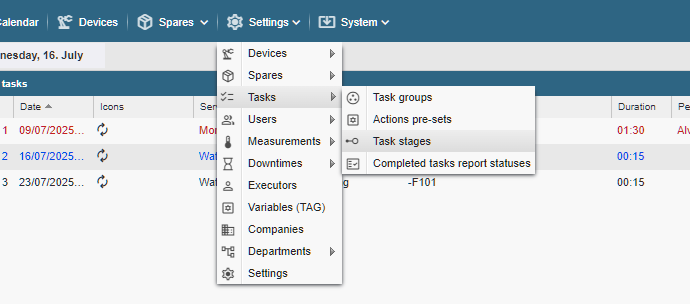
On the page that opens, click on the “+ Add” button.
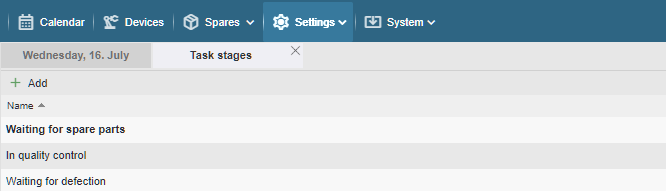
Type the name you want in the box that opens, then click the “Save” button.
Repeat the action until all the desired stages have been created. If necessary, you can modify or add to the list of stages later.
To modify or delete a stage, right-click on the desired line and select the desired option from the context menu that opens.
NB! Deleted milestones will remain in the view as crossed out but will no longer be displayed when assigning milestones to a work order. If desired, it is also possible to restore a deleted milestone (right-click on the line and select “Restore” from the context menu).