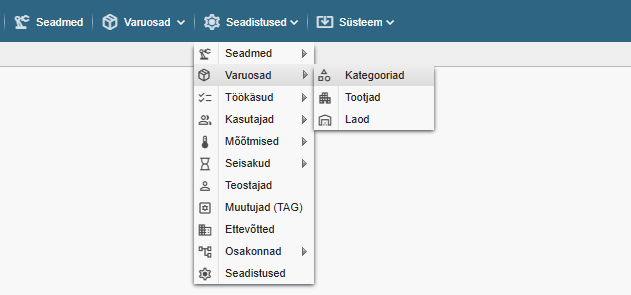
Note! If you do not see the menu items referenced in the Alldevice CMMS application, you do not have privileges to manage device categories.
Each spare part you enter in the Alldevice application can also be linked to a spare part category. This gives the possibility to filter spare parts by category.
New categories can be added either from the parts map (the last option in the category drop-down menu is “… add new”) or via the Settings menu > Parts > Categories.
Clicking on the link opens a table with the names of the categories of spare parts entered in the application.
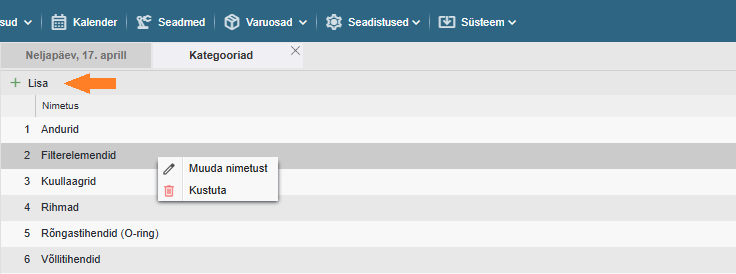
Add: To add a new spare part category, click on the “+ Add” button on the left side of the table header. It is not possible to add a category with the same name, and a message will be displayed when saving.
Edit: To change the category name, double-click on the desired row or right-click and select “Edit Name” from the context menu. To enter a change, press the “Enter” key on the keyboard or click anywhere on the screen.

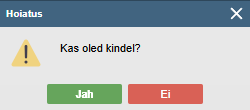
Deletion: to delete a category, right-click on the context menu and select “Delete”. And confirm your wish in the dialog box that appears by clicking “Yes” or cancel the deletion by clicking “No”.