
Is it possible to configure the maintenance interval based on operating hours?
Yes, it’s possible.
How to configure the maintenance interval based on counters?
In Alldevices, we do not differentiate between hours, kilometers, production quantity, or any other unit. We compare numeric values without considering the unit. Therefore, we use the term ‘counter’ (not running hours).
To use counter-based intervals, the device’s counter reading must be updated regularly (once per day). This can be done via the API interface, and it is recommended to automate the process. If you prefer to update the counter manually, please contact us and we will explain the available options.
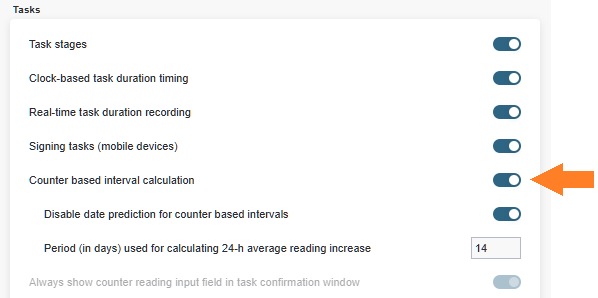
Make sure that the counter-based interval tracking functionality is enabled in the settings. To do this, go to Settings > Settings > Functionality and scroll to the ‘Tasks’ section.
To create a counter-based interval (schedule), you need to use the Day/Counter-based interval type. To do this, open the desired device card and navigate to the ‘Task Intervals’ TAB, then proceed to the ‘Scheduled Tasks’ subtab (a task sheet template must be created beforehand, but we assume this has already been done).
Click the ‘+ Add Day/Counter-based Interval’ button. If the button is not visible, there should be an ‘Edit’ button on the right side of the window. Click that first.

Fill in the fields in the newly opened row…

Name: The name of the interval. This serves as a reminder to yourself of the purpose of the interval. The name is also displayed when you want to copy or import this interval to another device. More details are available HERE.
Start Date: The reference date for the time-based interval. This is the date from which the next maintenance date will be calculated. Simply put, it is the date of the previous maintenance. If the device is new, enter today’s date. If it is an existing device and the last maintenance was performed a month ago, enter that date.
Initial reading: The counter reading at which the previous maintenance was performed. For a new device, this is usually zero.
[ ] Don’t stop during repairs: By default, when the device status is changed from ‘In Operation’ to ‘In Repair’ or ‘On hold’, all regular tasks for that device are suspended (hidden). If this is a maintenance task that needs to be performed regardless of the device status, check this field.
An interval can be set to depend on both a time-based condition and a counter value. The condition that is met first will trigger the task — just like with car maintenance: 1 year or 20,000 km, whichever comes first.
Rule: You can choose the time interval at which this task will be displayed.
Counts: Defines the length of the counter-based interval — how many counts (e.g., operating hours) until the next maintenance.
If the time-based condition is set to zero, the time tracking will be ignored. If the number of coujnts is set to zero, the counter-based tracking will be ignored.
Task: Specifies which work order (worksheet template) will be displayed for this maintenance.
How does a counter-based maintenance interval work?
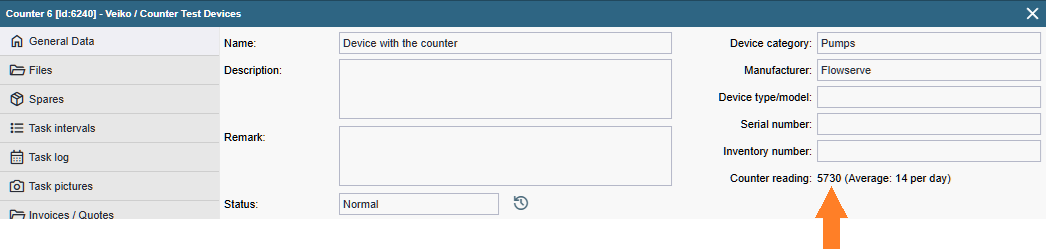
If the device’s counter value is updated regularly, Alldevice calculates the average counter change over the last 14 days (by default; the period length can be adjusted in the settings). Both the current counter value and the average change over the period are displayed on the device card’s general information page.
Alldevice knows that the counter value at the time of the previous maintenance was, for example, 6000 (this value is entered when confirming the work), and the maintenance interval is set to 500 units. Therefore, the next maintenance will be due when the counter reaches 6000 + 500 = 6500.
If we know that our target is 6500 and today’s counter reading is 6226, then we also know how many units remain until the next maintenance — that is, 6500 – 6226 = 274 units.
We also know that, on average, 10 units are added per day. Therefore, 274 / 10 = 27.4 ≈ 27. This means today’s date plus 27 days gives us the estimated date for the next maintenance.
For counter-based intervals, the estimated date of the next task is recalculated every morning. This means that if the device usage intensity increases, the work order will shift closer to the current date. If the usage intensity decreases, the work order will move further away in the calendar.
If at some point the average daily change in the counter value becomes very low, the calculated date may end up being later than the date defined by the time-based condition. In such cases, the task will remain fixed on that date and will no longer move further away.
If you want to fix the task to a specific date (so that it no longer shifts based on usage intensity), right-click on the desired row and select ‘Change the Date’, then choose ‘Lock tasks to Date’ or select a date that suits you. Tasks with a modified date are treated as the user’s request to perform maintenance on a specific date, regardless of changes in the counter value.
If the time-based condition is set to zero (i.e., not in use) and the average value over the period also drops to zero, the work order disappears from the schedule — since division by zero is not possible, we cannot estimate when the task should be performed. Once the device is restarted and the average value rises above zero, the work order will reappear.
Can I disable date prediction?
Yes, this is possible. To do so, open Settings > Settings > Functionality … go to the ‘Tasks’ section and enable ‘Disable date prediction for counter based intervals’.
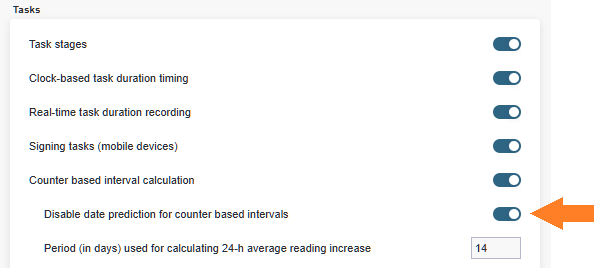
In this mode, Alldevice does not attempt to predict the task date in advance. The task is created based on the time-based rule, and on the morning following the fulfillment of the counter value, the work order shifts to the corresponding date.
If the interval has no time-based condition, the task is not displayed. It becomes visible on the morning following the fulfillment of the counter value and is then assigned the corresponding date.
If I create an interval with a daily range and record the counter value on the work order every day, why does the counter value on the device card not change?
The device counter value and the task counter value are completely different things.
The counter value recorded on the work order indicates when the corresponding task was performed.
The value shown on the device card indicates what the counter reading was/is at the current moment (at the time of the update).