
Can I hide certain locations in the devcie tree from a user?
Yes, this is possible. To do this, you need to use the Departments functionality.
What does the Departments functionality enable and do?
The Departments functionality allows you to link locations and users in the device tree to specific department names. If a user is assigned to ‘Department 1’, they will only see the locations in the device tree that are tagged with the same department.
In the task views, the user will only see the tasks that are linked to the devices visible to them OR the tasks where they are assigned as the performer.
How to start using the Departments functionality?
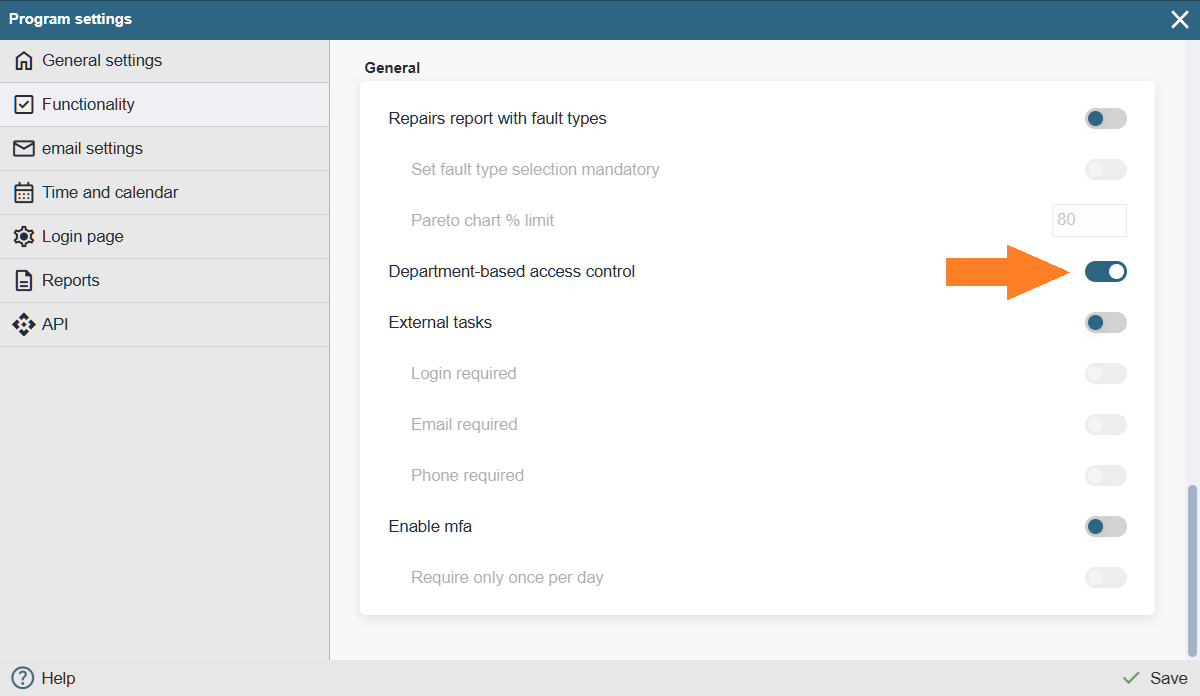
First, you need to make sure that the functionality is activated. Open Settings > Settings > Functionality > General (scroll down) > Department‑based access control. Make sure the functionality is enabled.
Next, make sure that your user has the privileges required to manage departments. To do this, open Settings > Users > Users, find your user in the list, and check which user group they are assigned to.

Then open Settings > Users > Groups and open the desired group.
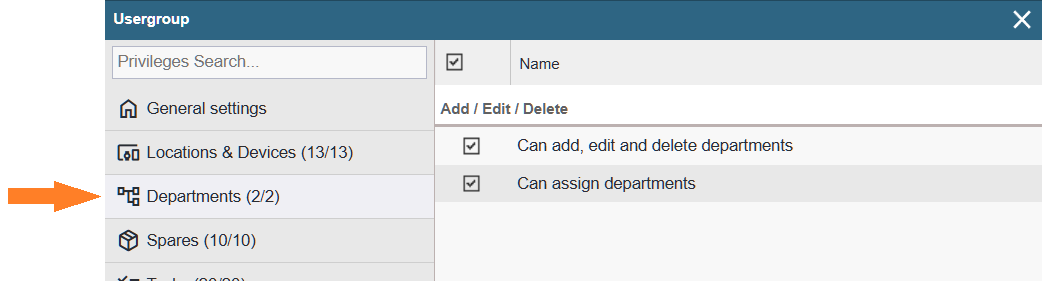
Make sure that all required privileges are configured.
Note: If you do not see the Settings > Users menu, you do not have the permissions required to manage users. In this case, ask a colleague (the system’s main administrator) who has the appropriate rights to assist you.
As the next step, you need to create the departments. You can read more about this HERE.
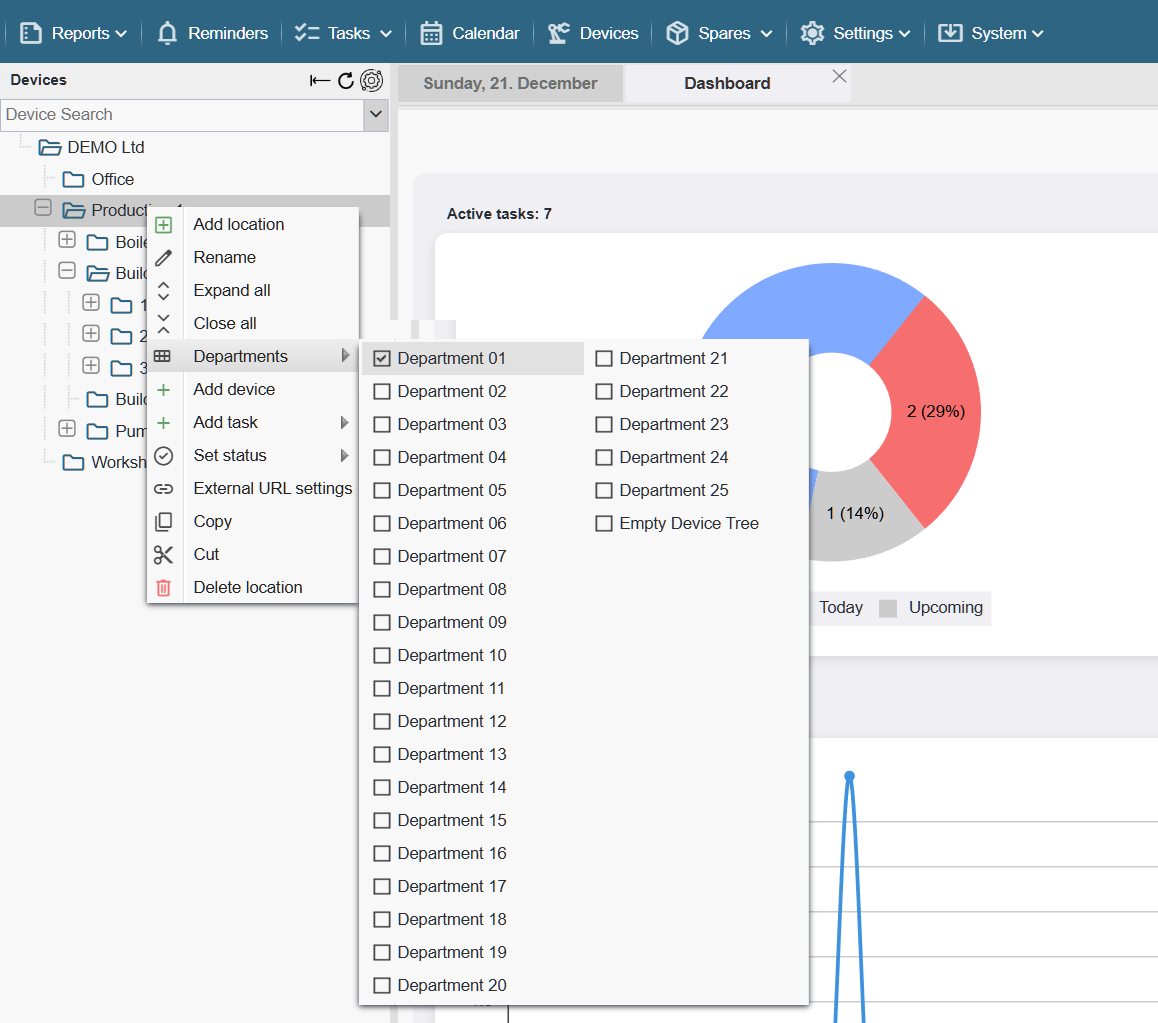
Once the departments have been created, they need to be linked to the desired locations. This can be done either through the departments overview table (read HERE) or through the drvice tree.
To assign a department in the device tree, right‑click the desired location, select ‘Departments’ from the context menu, and mark the desired options.
Note: If a department is assigned to a location that contains sub‑locations, those sub‑locations are automatically included under the same department and do not need to be assigned separately
As the next step, you need to link the user whose visibility you want to restrict to the desired departments. To do this, open Settings > Users > Users, find the desired user, and open their profile.
Go to the ‘Departments’ tab and select the desired options.
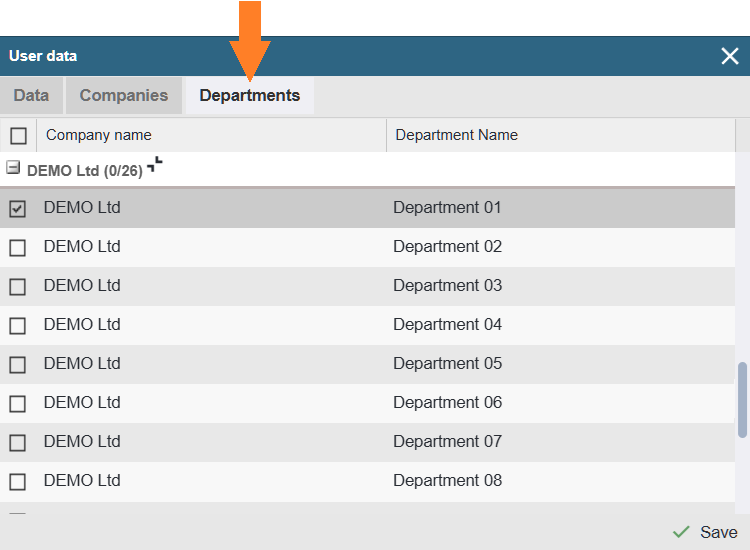
The referenced user will now see only those locations in the device tree that are linked to the departments assigned to them (one or several). As shown in the image below, the device tree contains no other locations except the one we linked to ‘Department 01’.
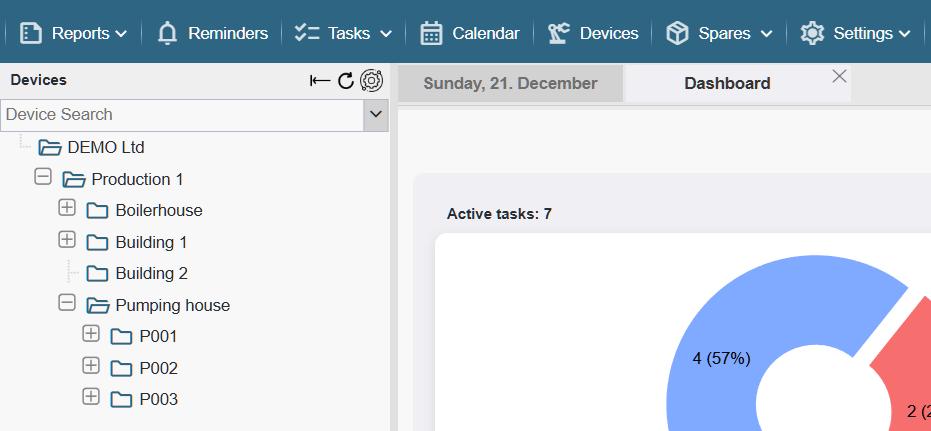
Note: If a department is assigned to a sub‑location, the entire location path leading to that sub‑location will remain visible in the device tree (to maintain a consistent hierarchy for all users), but the devices located in the higher‑level locations will not be shown to the user.
Bonus: If you want the user to see no devices in the device tree but still see only their own work orders, assign the user to a department that is not linked to any location. In this case, the user will not see any devices in the device tree (because no matching department exists there), but they will still see all tasks where they are assigned as the performer.
Good to know:
- Assigning all departments to a user does not mean they will see all devices in the device tree. No — they will only see the locations that are linked to the selected departments. To see everything, all department assignments must be removed.
- If a user is linked to a department, they cannot assign departments through the device tree (the corresponding menu is hidden). However, if they have the necessary privileges, they can still edit or assign departments via Settings > Departments > Department Overview (read HERE).