
To add departments and manage the list, select “Settings > Departments > Department List” from the top menu bar.
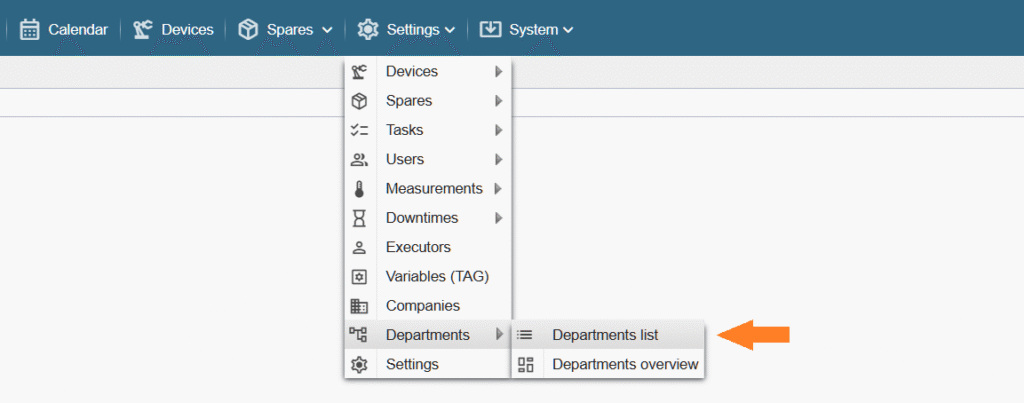
Note: If you do not see the referenced menu links in the Alldevice CMMS application, it means you either lack the necessary permission (privilege) to manage departments or the department functionality has not been activated.
To add a department, click the “+ Add” button located in the upper right corner of the window.
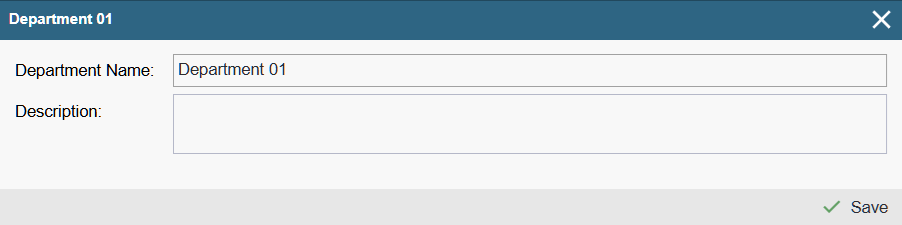
In the window that opens, fill in the fields and click “Save”.
Note: The description field is intended both for others and for yourself, allowing you to leave a comment explaining the purpose of the department you created.
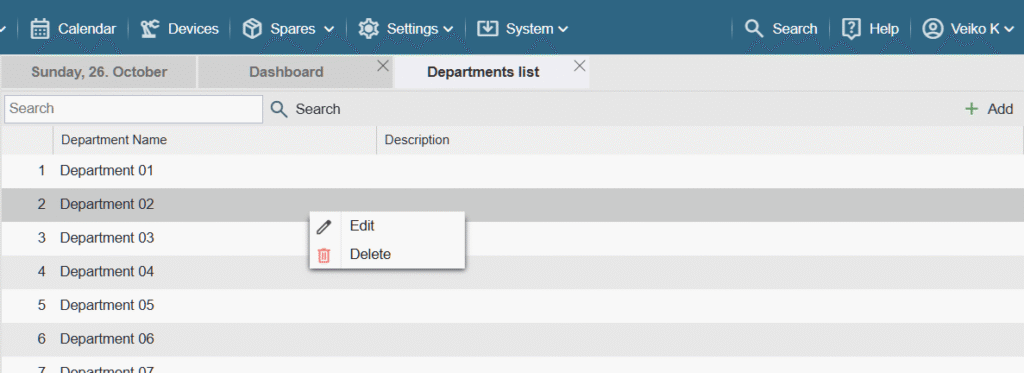
To rename or delete a department, right-click on the desired row and select the appropriate option from the context menu that appears.
Note: A department cannot be deleted if it is already in use within the application (linked to a location).
To learn how to use department functionality, read HERE.