
If you need to assign someone as the performer of a work order who is not a user of your Alldevice application, you can do so by adding a executor (performer). The performer may be an individual, a company (subcontractor), or a person associated with the company.
To manage performers, select “Settings > Executors” from the top menu bar.
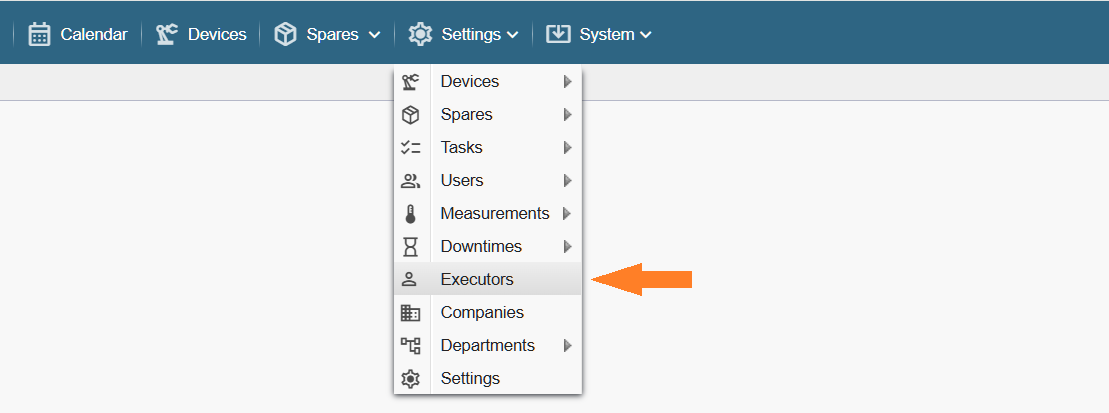
Note! If you do not see the referenced menu links in the Alldevice CMMS application, you lack the necessary permission (privilege) to manage executors.
In the opened view, all performers entered into the Alldevice CMMS application are displayed.
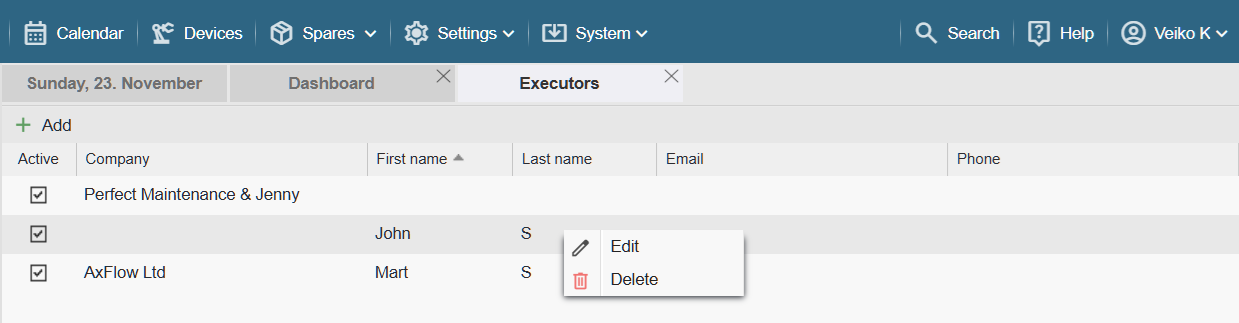
To edit or delete a executor, right‑click the desired row and select the appropriate option from the context menu.
To activate or deactivate a performer, click the checkbox in front of the row. Deactivated performers are not displayed in the list of work order performers (they are removed from the selection unless they remain assigned to existing work orders).
To add a performer, click the “+ Add” button and fill in the required fields.
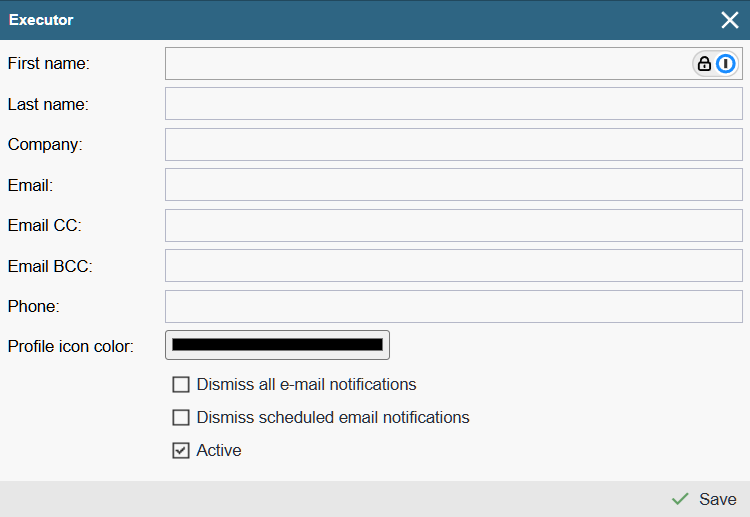
First name: Performer’s first name
Last name: Performer’s last name
Company: Performer’s company name
Note! It is mandatory to fill in either the company name or the first and last name. Completing all fields is not strictly required
Email: Performer’s email address
Email CC: Address of the recipient who will receive a copy of the email
Email BCC: Address of the recipient who will receive a blind copy of the email
When an email address is entered, the system automatically sends the work order to the performer if they are assigned to that task. If the email needs to be sent to multiple addresses, separate the addresses with a comma. The email addresses entered in the “Email” field also appear in the application’s internal address book (visible when manually sending an email for an act or work order).
Phone: Performer’s phone number (informative)
Profile icon color: The color used in the calendar to distinguish this performer’s icon.
Disable all email notifications: When this option is activated, the application does not send automatic notifications to the performer’s address (including the regular morning notification and work orders assigned to the performer during the day).
Disable regular email notifications: Disables the morning notification email, but work orders assigned to the performer during the day are still sent at the time they are added.
Active: Indicates whether the selected performer is visible in the list of performers available for assignment to a task.
Note! Alldevice users (individuals who can log into the application) do not need to be added separately as performers. Assigning a user as a performer is done from the user card (Settings > Users > Users > … [TAB: Companies]).
If a user with the same first and last name has already been entered into the application, a corresponding warning is displayed upon saving, but the saving process itself is not blocked.