
Add / Edit / Delete | View | General | Emails / Reports
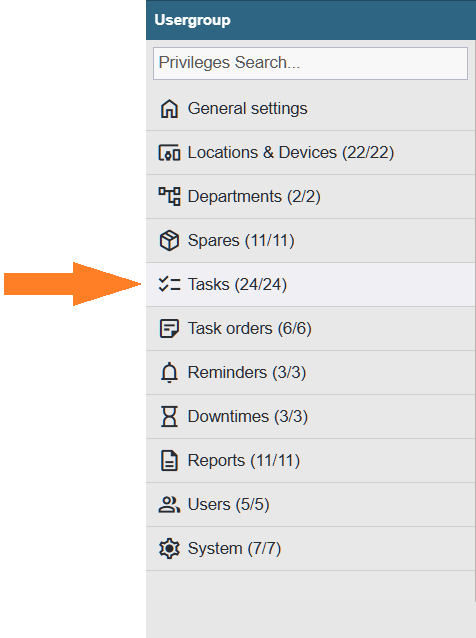
Add / Edit / Delete
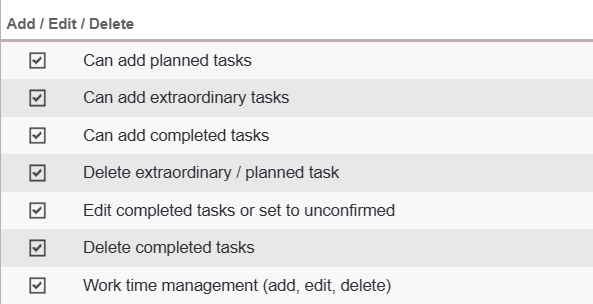
Can add planned tasks – if the user has the required privilege, a new option ‘Add Task’ appears in the device tree context menu, in the ‘Tasks’ button context menu, and on the device card ‘Task log’ page under the ‘+ Add’ button as ‘Add planned task’.
Can add extraordinary tasks – if the user has the required privilege, a new option ‘Add Task’ appears in the device tree context menu, in the ‘Tasks’ button context menu, and on the device card ‘Task log’ page under the ‘+ Add’ button as ‘Add extraordinary task’.
Can add completed tasks – if the user has the required privilege, a new option ‘Add task’ appears in the device tree context menu, in the ‘Tasks’ button context menu, and on the device card ‘Task log’ page under the ‘+ Add’ button as ‘Add completed task’.
Deleting extraordinary / planned tasks – if the user has the required privilege, a ‘Delete’ option appears in the context menu of confirmed tasks in the work order list.
Edit completed tasks or set to unconfirmed – if the user has the required privilege, a ‘Set unconfirmed’ option appears in the context menu of confirmed work orders in the tasks list. In the confirmed task view, a ‘Edit’ button becomes available.
Delete completed tasks – if the user has the required privilege, a ‘Delete’ option appears in the context menu of confirmed work orders in the tasks list.
Work time management (add, edit, delete) – if the user has the required privilege, they can add, modify, and delete working hours on the work order’s ‘Work times’ tab. This privilege also allows adjusting the work start and end times when confirming the work order.
View
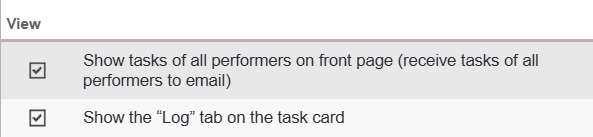
Show tasks of all performers on front page (receive tasks of all performers to email) – if the user does not have the required privilege, the Alldevice home page shows only the work orders associated with the logged‑in user. When the privilege is enabled, all work orders are displayed.
The privilege also affects the content of the morning notification email.
Show the “Log” tab on the task card – Allows the user to view the “Log” tab with all task‑related log entries.
General
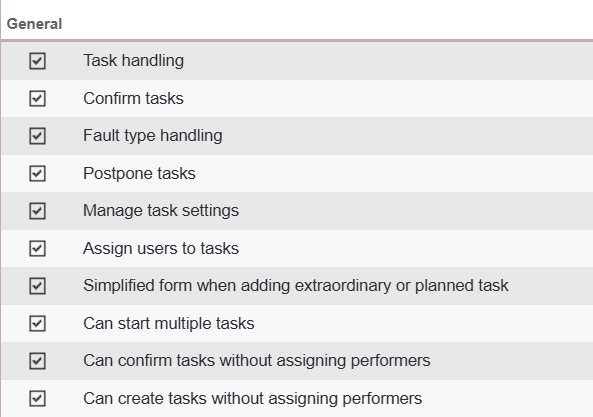
Task handling – if the user has the required privilege, they are allowed to execute the work order (they can add comments, record spare parts, mark checklist activities, etc.).
Confirm tasks – if the user has the required privilege, they are able to confirm (close) the work order.
Fault type handling – if the user has the required privilege, a ‘Fault Types’ button becomes visible in the Settings > Devices > Categories table, and the user is allowed to add, edit, and delete fault types.
An additional option ‘…add new’ appears at the end of the fault‑type dropdown list in the extraordinary work‑order confirmation window.
Postpone tasks – if the user has the required privilege, they are able to postpone work orders.
Manage task settings – if the user has the required privilege, the ‘Tasks’ option becomes visible in the Settings menu, giving the user the ability to manage Task groups, Action pre-sets, Task stages, and Completed task report statuses (add, edit, delete).
Assigning users to tasks – if the user has the required privilege, they are able to assign performers to a work order.
Simplified form when adding extraordinary or planned task – if the user has the required privilege, the work‑order entry window opens by default in a more compact view.
Note: this privilege will be removed after the update of the work‑order entry window.
Can start multiple tasks – this privilege allows the user to start several work orders simultaneously. Without the privilege, the user can start only one task at a time. When attempting to start another task, the user is notified that an active task already exists and is offered the option to pause it automatically.
Can confirm tasks without assigning performers – Allows the user to approve a work order without specifying a performer.
Can create tasks without assigning performers – Allows the user to create a task without specifying a performer.
In general, it is recommended to enable this privilege, as in some cases we do not yet know who will carry out the work order (for example, when the task is planned far in advance). Depending on the company’s workflow, there may be situations where it is necessary to prevent the creation of work orders without immediately assigning a performer.
Emails / Reports
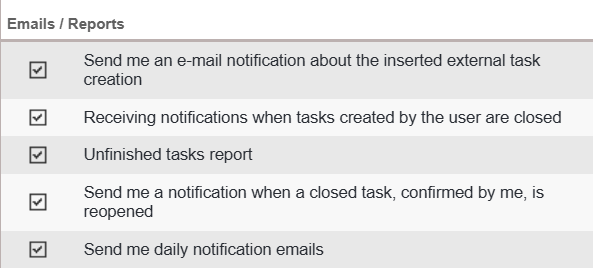
Send an e‑mail notification to the user when an external task is successfully created by him – Allows the user to receive an e‑mail confirmation when a task they submitted via an external link is successfully created.
This privilege is applicable only if submitting a task through an external link requires the user to authenticate.
In anonymous external‑link submission mode, the notification option is displayed in the submitter name entry dialog.
Receiving notifications when tasks created by the user are closed – Enables the user to receive an e‑mail notification when a task order or task they created is closed or marked as completed.
Unfinished tasks report – Allows receiving a summary of tasks that have not been completed on time and have exceeded the deadline by X days. The number of days (X) can be configured in the e‑mail settings.
This is a so‑called ‘boss’ (supervisor) privilege, which allows a supervisor to receive a notification when certain work orders have been left unattended for an extended period.
For users who log into the Alldevice environment on a daily basis, we do not intend to enable this privilege.
Unfinished tasks report – Allows the user to receive an email notification when a work order they previously closed has been reopened (the confirmation of the task has been cancelled).
Send me daily notification emails – Allows the user to receive a morning notification email containing a list of active work orders (tasks not completed on time and tasks scheduled for the current day).
We recommend enabling this privilege when accessing the Alldevice environment is not part of the user’s daily routine. This is typical for smaller companies that maintain their equipment but do not perform maintenance activities requiring regular attention on a daily basis.
Users who log into the Alldevice environment daily already see their Active tasks there, and an additional morning email may become spam‑like (unnecessary).