
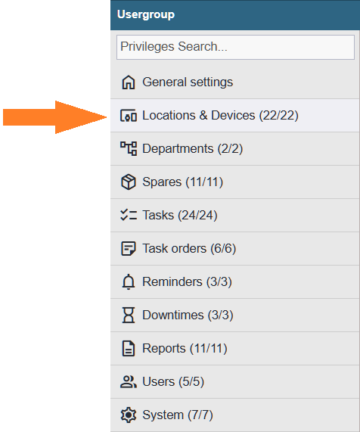
Add / Edit / Delete | View | General
Add / Edit / Delete
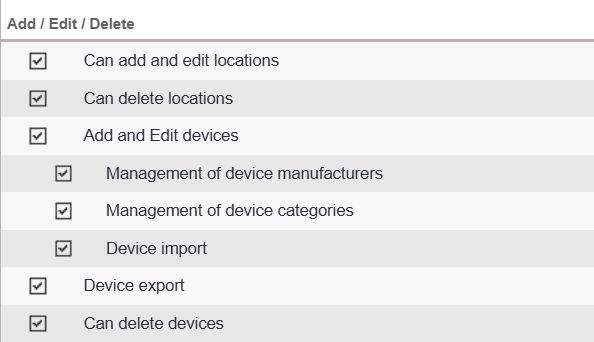
Can add and edit locations — When the user has the required privilege, the device tree context menu displays the options ‘Add location’ and ‘Rename’, allowing the user to add new locations to the device tree and modify the names of existing ones.
Can delete locations — When the user has the required privilege, the device‑tree context menu displays the option ‘Delete location’, allowing the user to remove a location.
Add and edit devices — When the user has the required privilege, the device‑tree context menu displays the option ‘+ Add device’, allowing the creation of new device cards. Existing device cards also show an ‘Edit’ button, enabling the user to modify the device’s data.
Management of device manufacturers — With the required privilege, the user gains access to Settings > Devices > Manufacturers, where device manufacturers can be added, edited, and deleted. In addition, when creating or editing a device card, the manufacturer dropdown now includes an ‘Add new…’ option at the end, allowing new manufacturers to be added without leaving the card.
Management of device categories — With the required privilege, the user gains access to Settings > Devices > Categories, where device categories can be added, edited, and deleted. In addition, when creating or editing a device card, the category dropdown now includes an ‘Add new…’ option at the end, allowing new categories to be added without leaving the card.
Device import — When the user has the required privilege, an Import button appears in the upper‑right corner of the device list view. This allows importing new devices into the Alldevice application using an Excel file or performing mass updates on existing devices.
Device export — When the user has the required privilege, an Export button appears in the upper‑right corner of the device list view, allowing the filtered list of devices to be exported to an Excel file.
Can delete devices — When the user has the required privilege, the device‑tree context menu displays the option ‘Delete’. The same ‘Delete’ option also appears in the context menu of the device list view.
View
The privileges in the View group determine which tabs on the device card the user can see. If the user has none of these permissions, they will still see the device name in the device tree, but opening the device card will not be possible.
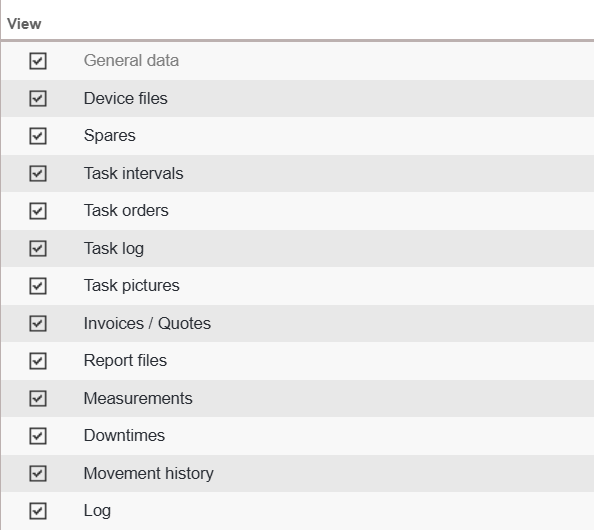
General data — Displays the General data tab of the device card.
When the “Add and edit devices” privilege is active, it is not possible to hide the General Information tab on the device card (it is active by default).
Files — Displays the Files tab of the device card.
Spares — Displays the Spares tab of the device card.
Task intervals — Displays the Task intervals tab of the device card.
Task Orders – Allows displaying the Task Orders tab on the device card. The tab is visible only if the device has at least one active task order.
NB! The privilege is visible only when the Task Orders functionality is enabled.
Task log — Displays the Task log tab of the device card.
Task pictures — Displays the Task pictures tab of the device card.
Invoices / Quotes — Displays the Invoices / quotes tab of the device card.
Reports — Displays the Reports tab of the device card.
Measurements — Displays the Measurements tab of the device card.
Downtimes — Displays the Downtimes tab of the device card.
Movement history — Displays the Movement history tab of the device card.
Log — Displays the Log tab of the device card.
General

Updating a device’s counter reading (on mobile) — When the user has the required privilege, a Update counter reading button becomes visible in the device intermediate‑menu and on the device card in the mobile version, allowing the device’s counter value to be updated.
External url handling — When the user has the required privilege, the External URL settings option becomes visible in the device‑tree context menu.