
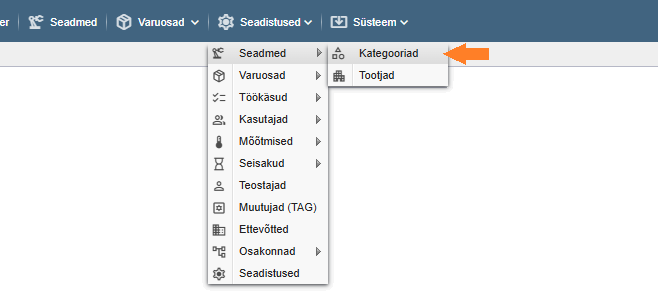
PS! If you do not see the menu items referenced in the Alldevice CMMS application, you do not have privileges to manage device categories.
Each device you enter in the Alldevice application can also be linked to a device category. This gives you the possibility to filter devices by category, and to configure additional fields and error types specific to devices in that category.
You can add new categories either directly from the device card — the last option in the category dropdown is “… add new” — or through the menu Settings > Devices > Categories.
Clicking on the link will open a table with the names of all the equipment categories entered in the application.
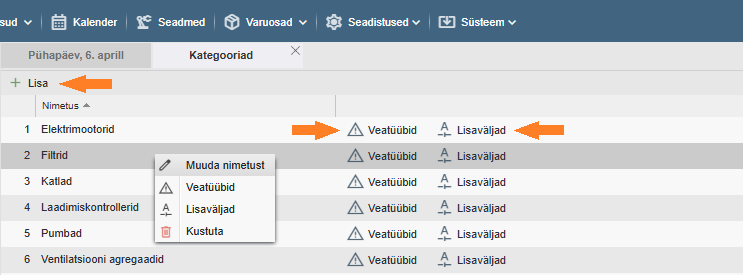
Add: To add a new equipment category, click on the “+ Add” button on the left side of the table header. It is not possible to add a category with the same name, and a message will be displayed when saving.
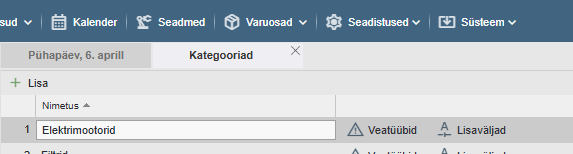
Edit: To change the category name, double-click on the desired row or right-click and select “Edit Name” from the context menu. To enter a change, press the “Enter” key on the keyboard or click anywhere on the screen.
Deletion: to delete a category, right-click on the context menu and select “Delete”. And confirm your wish in the dialog box that appears by clicking “Yes” or cancel the deletion by clicking “No”.
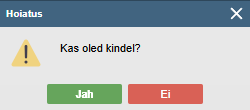
If the category you want to delete is already in use, you will not be able to delete it and a message will be displayed.
Fault Types: to add or change the error types associated with a given device category, click the “Fault Types” button on the desired row or right-click on the context menu and select “Fault Types”. In the window that opens, you can add error types by clicking on the“+ Add” button. Error types must be unique. It is not possible to create error types with an identical name and an error message will be displayed.
Changing and deleting the name of a bug type works in the same way as changing the name of a device group described above.
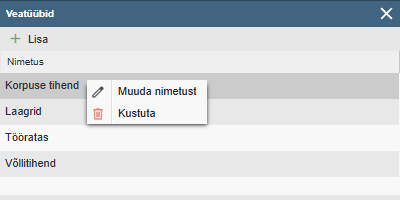
Error types are used in emergency work to record the general cause of the problem. This will allow later analysis of the emergency works and to identify if any of the fault types become dominant.
Custom fields: click on the “Custom fields” button to set additional fields specific to the device category. Read more about this HERE.