
You can open the spare parts table by clicking the “Spares” button on the top bar. The table displays all spare parts (spare part cards) entered into the Alldevice application.

Two conditions must be met in order to view the spare parts table:
- The spare parts functionality must be enabled (Settings > Settings > Functionality).
- The user must have permission to view the spare parts table (Settings > Users > Groups > [ Spare Parts ] > “Spares table visible”).
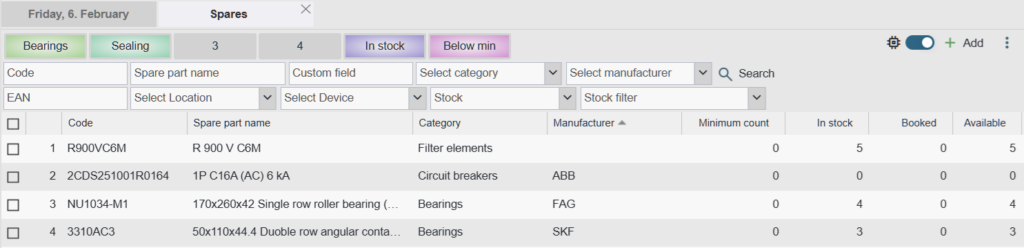
The spare parts table allows you to adjust the order and visibility of columns if needed. You can read how to do this HERE.
- ID – The spare part’s ID in the database.
- Code – The spare part’s code.
- Name – The spare part’s name.
- Category – The spare part’s category.
- Manufacturer – The spare part’s manufacturer.
- Minimum quantity – The recommended minimum stock level for the spare part. If the “Available” value is lower than the defined minimum quantity, the background of that spare part’s row is highlighted in pink.
- In stock – The number of units of this spare part recorded in the warehouse (includes reserved quantities).
- Booked – The number of units of this spare part that are reserved for work orders.
- Available – The number of units of this spare part that are still available (In stock – Booked = Available).
- Cost – The spare part’s cost (purchase price).
- Sales price (0% VAT) – The spare part’s sales price without value‑added tax.1
- VAT% – The value‑added tax percentage.2
- Sales price (+VAT) – The spare part’s sales price including value‑added tax.3
- Main stock– The spare part’s availability in the main stock.
- Stock 1, Stock 2, etc. – Availability in the stocks you have added to the Alldevice application. If no additional stocks have been added, these columns are not displayed. The column names correspond to the warehouse names you have entered.
- Custom fields – Columns corresponding to the custom fields created on the spare part card. If no custom fields have been added, no additional columns are displayed.
- Files – Icons indicating files attached to the spare part. By clicking an icon, you can open an image or PDF directly from the list.
- Connected devices – Displays the number of devices with which this spare part is associated. Clicking the button opens the spare part’s card on the corresponding page, where you can see in more detail which devices the spare part is linked to.
- EAN – The spare part’s barcode number. Read more HERE.
Buttons in the top‑right corner of the table

- Add – Creating a new spare part card.
- Import – Allows you to import spare part cards into the Alldevice application using an Excel table. You can read more about this HERE.
- Export – Allows you to export the displayed spare parts as an Excel table.
- Stock movement – Opens the stock movements table.
Spares button context menu
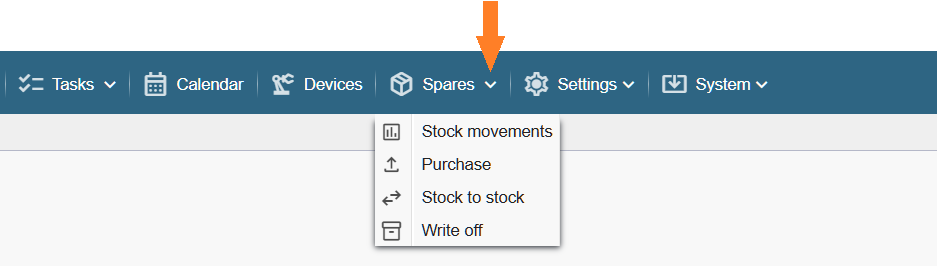
- Stock movements – Opens the stock movement table.
- Purchase – A shortcut for creating a spare parts receipt document.
- Stock to stock – A shortcut for creating a stock transfer document from one warehouse to another.
- Write‑off – A shortcut for creating a spare parts write‑off document.
——————————————————————————————————————————–